Trying Automated ML

Some students had asked me for my opinion on automated tools for machine learning. The thought occurred that I hadn’t done much with them recently, and it was about time I gave the much-hyped time savers a go – after all, aren’t they going to make data scientists like me redundant?

In today’s post, I’ll be trying out Google’s AutoML tool by throwing various datasets at it and seeing how well it does. To make things interesting, the datasets I’ll be using will be from Zindi competitions, letting us see where AutoML would rank on the player leader-board. I should note that these experiments are a learning exercise, and actually using AutoML to win contests is almost certainly against the rules. But with that caveat out the way, let’s get started!

How it works

AutoML (and other similar tools) aims to automate one step of the ML pipeline – that of model selection and tuning. You give it a dataset to work on, specify column types, choose an output column and specify how long you’d like it to train for (you pay per hour). Then sit back and wait. Behind the scenes, AutoML tries many different models and slowly optimizes network architecture, parameters, weights… essentially everything one could possibly tweak to improve performance gets tweaked. At the end of it, you get a (very complicated) model that you can then deploy with their services or use to make batch predictions.

The first step with AutoML tables – Importing the data.

The resultant models are fairly complex (mine were ~1GB each fully trained) and are not something you can simply download and use locally – you must deploy them via Google (for an extra fee). This, coupled with the cost of training models, makes it fairly expensive to experiment with if you use up your trial credits – so use them wisely.

Fortunately, there are other ways to achieve broadly the same result. For example, AutoKeras. Read more about that here.

Experiment 1: Farm Pin Crop Detection

This competition involves a classification problem, with the goal being to predict which crop is present in a given field. The training data is provided as field outlines and satellite images – not something that can effortlessly slot into AutoML tables. This meant that the first step was to sample the image bands for the different fields, and export the values to a CSV files for later analysis (as described in this post). This done, I uploaded the resultant training file to cloud storage, selected the table, chose my input and output columns and hit go.

AutoML ‘Evaluate’ tab showing model performance.

The scoring metric for this competition is log loss. My previous best (using the same training data to train a random forest model) scored around 0.64 (~20th on the leaderboard). So a score of <0.6 looked promising. I uploaded the test set, hit predict and then manually cleaned up the output to match the submission format for Zindi. Score? 0.546, putting me in 12th place. No feature engineering besides sampling some satellite images, no manual tweaking of model parameters…. not bad!

I was quite pleased with this result. I enjoy the feature engineering side of things, but the tedium of hyper-parameter tuning is less appealing to me. If this tool can magically let me skip that step, it’s a win in my book! I may re-visit this with some added features, information from more images and perhaps a trick or two to enlarge the training set.

Experiment 2: Traffic Jam

Spurred on by the first success, I turned to the Traffic Jam competition since I still had the dataset on my laptop. This was a regression problem, with the goal being to predict the number of tickets sold for a given trip into Nairobi. The training data was fairly sparse, with only ~2000 rows to work from. Still, I figured it was worth a shot and threw a few node hours worth of Google-managed ML magic at the problem.

An MAE of 3.4, hypothetically equivalent to ~3rd place!

The evaluation results had me excited – and MAE of 3.4 would have placed the model in third place had the competition remained open. I hastily uploaded the predictions to Zindi, to see the score of… 5.3 (160th place). Now, I might be missing some glaring error in the way I formatted predictions for upload, but I suspect that the issue is with AutoML. It’s not really designed for such small datasets. From the website: “Depending on how many features your dataset has, 1,000 rows might not be enough to train a high-performing model.” The impressive MAE shown in the results tab is for one particular test set, and it seems that for the Zindi test set we were simply not as lucky. Another potential factor: The random test set will have sampled from the same date range as the training data, whereas the Zindi test set was for a different time period. In cases like this, a non-shuffled test/train split can be a better indicator of true performance.

So, we’ve learnt something new! The magic tool isn’t magic, and just like any other method it needs good training data to make good predictions.

Experiment 3: Sendy

I couldn’t resist trying it out once more on the newly launched Sendy Competition. I merged the Riders info into the train and test sets, uploaded the data, gave it an hour of training time and set it going. The goal is to minimize RMSE when predicting travel time between two locations (for deliveries). I also did some modelling myself while I waited for the AutoML training to finish.

Scores (RMSE for predicted time in seconds)
My first attempt (Catboost on provided data): 734 (7th place when this post was written)
First place: 721
Google AutoML: 724 (4th place until I convince them to remove my latest entry)

Not too shabby! To me, one of the great uses of a tool like this is to give a ballpark for what a good model looks like. Without the Zindi leaderboard, I wouldn’t have a way to gauge my model performance. Is it good? Could it get better with the same data? Now I can compare to the AutoML, using it as a ‘probably close to best’ measure.

Where next?

These quick tests have convinced me that these automated tools can be a useful part of my workflow, but are not a complete replacement for manual experimentation, exploration, feature engineering and modelling. I intend to play around more with AutoML and other tools in the near future, so stay tuned for a continuation of this series.

Mapping Change in Cropland in Zimbabwe (Part 2)

In Part 1, I showed a quick way to get a model that predicts cropland extent, using someone else’s model as a starting point. This was a fun exercise, but in today’s post I’d like to show a more conventional approach to achieve the same goal, and then use that to track change in land cover over time within a region.

Training Data

This time, we’ll generate training data manually. For convenience, I’m changing the goalposts slightly: in this post, we’ll be making a simple model to distinguish between open land (fields, grassland, bare earth) and woodland. In the area of interest, this pretty much covers all the bases. Collecting data is a simple but laborious process – examples of each class are outlines in Google Earth Engine and saved as two separate FeatureCollections:

Some open areas (red) and woodland (green) manually outlined for training.

Modelling

We’ve covered modelling in GEE before, so I won’t go into details here. Sentinel 2 imagery is used, and I pretty much followed the docs to create a classifier and then apply it to the input image over the whole area. The model is fairly accurate, and a quick visual double-check confirms that it’s doing a good job of making the open areas:

Open area masked (left) vs input image (right)

Change over time

By choosing fields and wooded areas for training that have been present for decades, we can use the same training data to build models on imagery from different years. To track change in open land area, we can make a prediction for each year and sum the area that is classified as ‘open land’ with the following code snippet:

Getting the total area classified as open land over an ROI (ward 8)

For my ROI, the total open land trends steadily upwards. For dates earlier than 2015, I used Lnadsat 7 imagery as the input. From 2015 to 2018, Sentinel 2 Imagery was used as well as Landsat for comparison. In some years (2010 and 2018/19) there were enough cloudy images that I combined two years for the estimate. Some of the Landsat 7 imagery isn’t the best quality, and there are some issues with this approach that mean I wouldn’t trust the figures to be incredibly accurate. BUT, we’ve accomplished our goal: the figures show the change in land cover over time:

Conclusion

I hope this inspires you to try something like this for yourself, in an area that you’re interested in. I don’t think I’ll come back to this topic, although I’ll keep working on this project to turn it into something reliable (adding more training data, properly assessing accuracy, incorporating ground-truth data to verify etc etc). This post also marks the end of the Pioneer project mentioned here. My posting schedule will likely slow down, and you can expect some more diverse posts in the near future. Stay tuned!

Mapping Change in Cropland in Zimbabwe (Part 1)

I’m going to be working on a project that will ultimately require manually outlining tobacco fields in Zimbabwe. To help locate potential fields, it would be nice to have a model that can predict whether a giver area contains cropland. To train such a model required labeled fields – a chicken and egg scenario that should have me resigned to hours of manual work. But I much prefer not to do things if I can possibly get a computer to do it, and this post (along with one or more sequels) will document the ways I’ve made my life easier, and the lessons learnt in the process.

Trick #1: Standing on shoulders

I recently encountered a project that already did a lot of the hard work tagging fields all over Africa. Their results (featured in today’s Data Glimpse post) look great, but the training data used isn’t published. Now, I could just use their published map, but I’m also interested in change over time, while their map is based solely on 2015 data. What if we train a new model on the output of their model? This isn’t generally a great idea (since you’re compounding errors) but it might be good enough for our purposes.

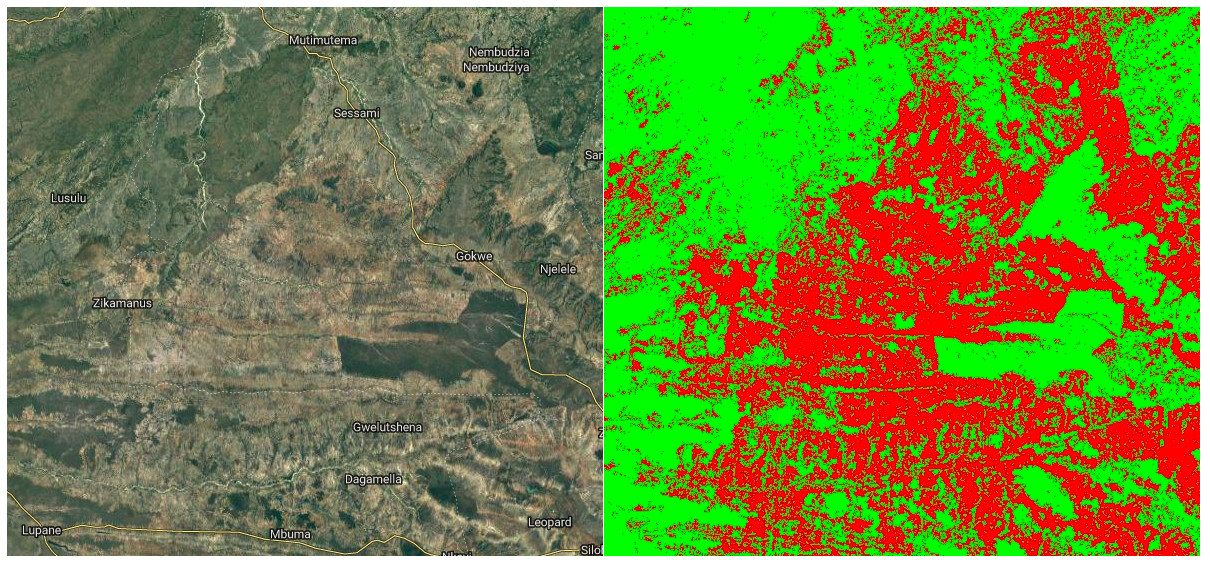
Satellite image (left) and my predicted cropland (right, in red)

In Google Earth Engine (script available here), I created a composite image from Landsat 8 images taken in 2015, including NDVI, band values from a greenest-pixel composite and band values from late in the year (planting season for most crops). This is to be the input to out model. I then sampled 2500 points, recording the inputs (the bands of the composite image) and the desired output (the cropland probability made available by the qed.ai team). This data was used to train a random forest model (framing the task as a classification problem) and the predictions compared to the predictions from the QED data. The result: 99% accuracy.

Confusion matrix and accuracy

What does this accuracy figure mean? How is it so high? It’s less astonishing when we look more deeply. This is a model, the same type as that used by the QED team, with roughly the same inputs. It isn’t surprising that it can quickly replicate the decision function so accurately. It’s highly unlikely that it’s this accurate when compared to the ground truth. But we can say the following: we now have a model that is very similar to that used by the QED team to predict cropland probability for the year 2015.

Now what? Looking at change over time

The model takes landsat 8 image data as it’s inputs. It was trained on 2015 data, but there is no reason why we can’t make predictions based on other years, and see where these predictions differ from the 2015 ones. Subtracting two years’ predictions gives a difference image, shown below for 2015 – 2018. Red indicated areas where cropland is predicted in 2018 and not 2015 (new cropland). Black and green are areas where the model predicts no change or less cropland in 2018.

Difference Image (2018). Potential new cropland shown in red.

I don’t want to trust this model too much, but if nothing else this shows some areas where there might be fields that have appeared in the last few years. I now have a much better idea where to look, and where to dig deeper with manual inspection of images from different years.

Conclusions and next steps

This sets the scene for my next steps: manually outlining fields, differentiating between different crop types, training an improved model, adding more inputs… Stay tuned for part 2.

Data Glimpse: Cropland and Settlement maps from QED.AI

The point of this Data Glimpse post is to feature a wonderful yet badly publicized data source: https://maps.qed.ai/. Using crowd-sourced data, they built really accurate maps of fields and settlements for the whole of Africa. They also make related spatial layers available (Enhanced Vegetation Index for different years, soil metrics etc). Their focus is “data systems and AI for health and agriculture”. The soil maps draw heavily on the AfSIS project, which makes the data from thousands of soil samples available (https://www.isric.org/projects/africa-soil-information-service-afsis).

The maps.qed.ai interface showing cropland probability

The QED maps interface makes it really easy to download all the available maps at 1km resolution. I’m not going to do any further analysis in this post – these maps are useful without modification, and it was really interesting for me to see the distribution of agriculture in Africa. The cropland probability map will be making an appearance in the next post.

Data Glimpse: Nighttime Lights

This ‘Data Glimpse’ post will look at the Global Radiance-Calibrated Nighttime Lights dataset [1], available through Google Earth Engine. However, the method shown here can be used with any Raster data source. To avoid repetition, I’ll refer back to this post any time I aggregate raster data over a shapefile.

The Data

The dataset is a collection of images from different years showing nighttime lights all over the globe. This information can be used to see where people are [2] and estimate measures such as economic activity in an area [3]. They have been used in some great research estimating the Global Human Footprint and highlighting the last wild places on earth [4].

Nighttime lights displayed in GEE

Each image contains two bands: ‘avg_vis’, which is the measure of illumination, and ‘cf_cvg’ describing cloud cover (used as a data quality metric).

Aggregating the Data by Region

Instead of a large raster image, we might want to aggregate the data by region. For example, we might want to look at how the amount of light visible at night in National Parks has changed over time. To get the data in the form that we want, we first need to define the regions that we’re interested in. This script that I made to illustrate the idea uses a landuse map of Zimbabwe as an example, but one could just as easily use Country outlines or draw a region with the ‘Draw a shape’ tool in GEE.

With the input region(s) defined, the key step is to use the reduceRegions function to add properties to each feature (area) that summarize the underlying raster. For example, with an image of nighttime illumination in the year 2000 called ‘lights_2000’ and the landuses map, we can add the mean illumination in each area with var landuse_with_lights = lights_2000.reduceRegions(landuses, ee.Reducer.mean());. The result can be exported as a shapefile or CSV file (see the script for details) and displayed or analyses in whatever software you like.

Average nighttime illumination over Zimbabwe

Change over Time

One of the nice things about this dataset is that it contains values for several different years. I took a look at the data from 2000 and 2010, with the goal of seeing if protected areas (forest lands, national parks etc) had seen an increase in nighttime lights (an indicator that people are moving into these areas). Most protected areas in Zimbabwe had almost no nighttime lights recorded, and those that did show (on average) a drop in the amount of nighttime lights (2010 values are ~20% lower than those for 2000). In the few places where lights had increased, the increase seems to be due to safari camps rather than encroachment from neighboring districts. The data can’t tell the whole story, and poor coverage plus the relative dimness of firelight might mean that some encroachment is missed, but it was encouraging to see that the wilderness areas are still largely dark and empty – just the way they should be.

References

[1] – https://developers.google.com/earth-engine/datasets/catalog/NOAA_DMSP-OLS_CALIBRATED_LIGHTS_V4
[2] – Elvidge, C.D., Imhoff, M.L., Baugh, K.E., Hobson, V.R., Nelson, I., Safran, J., Dietz, J.B. and Tuttle, B.T., 2001. Night-time lights of the world: 1994–1995. ISPRS Journal of Photogrammetry and Remote Sensing, 56(2), pp.81-99.
[3] – Wu, J., Wang, Z., Li, W. and Peng, J., 2013. Exploring factors affecting the relationship between light consumption and GDP based on DMSP/OLS nighttime satellite imagery. Remote Sensing of Environment, 134, pp.111-119.
[4] – Sanderson, E.W., Jaiteh, M., Levy, M.A., Redford, K.H., Wannebo, A.V. and Woolmer, G., 2002. The human footprint and the last of the wild: the human footprint is a global map of human influence on the land surface, which suggests that human beings are stewards of nature, whether we like it or not. BioScience, 52(10), pp.891-904.

Data Glimpse: South Africa’s Hydrological Data

South Africa’s Department of Water Affairs (DWA) makes all kinds of data publicly available through their data portal: http://www.dwa.gov.za/hydrology/. The download interface is a little clunky, but simple once you get the hang of it. This short post will take a look at some typical data, and list some of the ways this could be used in the future.

The DWA website, after selecting ‘Verified data’.

Most of the data comes from monitoring stations, each of which is assigned a unique ID. The easiest way to find stations in your area of interest is via the ‘Station Catalogue’ link visible in the above screenshot. Stations are typically a depth measure in a dam or river.

With a station chosen, the next step is to specify the date range and type of data you’d like to download. The available dates and information are listed in the Station Catalog. I picked a station in the Pongola river system, and saved the data file generated by the website as ‘daily_flows.txt’. This is a text file with variables separated by whitespace, and can be loaded into a pandas dataframe for analysis as follows:

Loading the data.

With the data thus loaded, it’s fairly easy to pot the flow over a given year, or calculate monthly averages. Here’s a plot showing the daily flow rate out of Jozini dam in 2018. Note that the graph has many flat areas – this is because this is a managed flow, with the amount of water released from the dam regulated by local authorities (somewhat badly, in this case [2]).

A plot of the daily flow rate.

A notebook showing more plots and an example of re-sampling for yearly averages is available here.

So what can you do with this data? Here are some ideas (let me know if you’d like to see any as future posts):
– Get dam level data for dams all over South Africa and and animate the levels over time, to illustrate the recent drought and the (alarming) longer trend.
– Use the data to learn hydrodynamic modelling (see [1])
– Combine with rain data to see how watershed capture has changed with agriculture and land use change
– Look for the change in river flows after new projects (dams, diversions and so on)

I hope you’ve enjoyed this brief glimpse at some fun data. Please let me know if you do something with this, or if you have some data that you’d like featured.

References:
[1] – Birkhead, A.L., Brown, C.A., Joubert, A.R., Singh, A. and Tlou, T., 2018. The Pongola Floodplain, South Africa–Part 1: Two-dimensional hydrodynamic modelling in support of an environmental flows assessment. Water SA, 44(4), pp.731-745.

[2] – Lanyi, Shira. 2018. “Paradise Lost: The Struggle to Preserve the Pongola River and its Inhabitants.” Open Rivers: Rethinking Water, Place & Community, no. 11. http://editions.lib.umn.edu/openrivers/article/paradise-lost/.

Data Glimpse: Visualizing Economic Activity with the G-Econ Project data

This is the first ‘data glimpse’ – a short exploration of an existing dataset, with code and examples showing some of the ways the data can be used. For today’s glimpse, I’ll be playing with the ‘G-Econ’ dataset [1], as recommended by <jonasmendes> on Pioneer. This dataset looks at economic activity for different locations, as opposed to breaking it down by country. There is data available from 1990, 2000 and 2005, broken down by ‘grid cell’ (a square one degree wide and one degree high).

Economic Activity by Grid Cell – G-Econ data for 1990

Loading the data

The data is shared as a Microsoft Excel worksheet [2]. There are 27,446 rows, and it’s a little overwhelming visually. Spreadsheets aren’t my forte, so my first step was to load the data into a Pandas DataFrame in a Jupyter notebook (available here for anyone who wants to follow along). With the data ready, I set out on the most obvious task: showing the data as a map. A few minutes of StackOverflow later, we have a visual and a GeoTiff file that can be opened in mapping software such as QGIS:

Asking questions

Because the data is aggregated by location (as opposed to population), it can answer some interesting questions. How does economic output vary with temperature or rainfall? How ‘centralized’ is industry in different regions? What’s the deal with all that $$$ hugging the coastlines? Let’s dig in.

Environmental Factors

First up, the effect of temperature:

Not much gets done where it’s cold, it seems

What about rainfall?

Economic Activity (2000) vs max precipitation (mm rainfall)

And finally, distance to the ocean:

Coasts are the place to be?

It appears that the most productive places are those where people like to be: accessible, not too hot, not too dry but not constantly drenched… A Goldilocks zone for human activity. The data already contains these environmental variables – I highly encourage you to try your own plots, or to read up the more thorough analyses in [1].

Comparing Countries

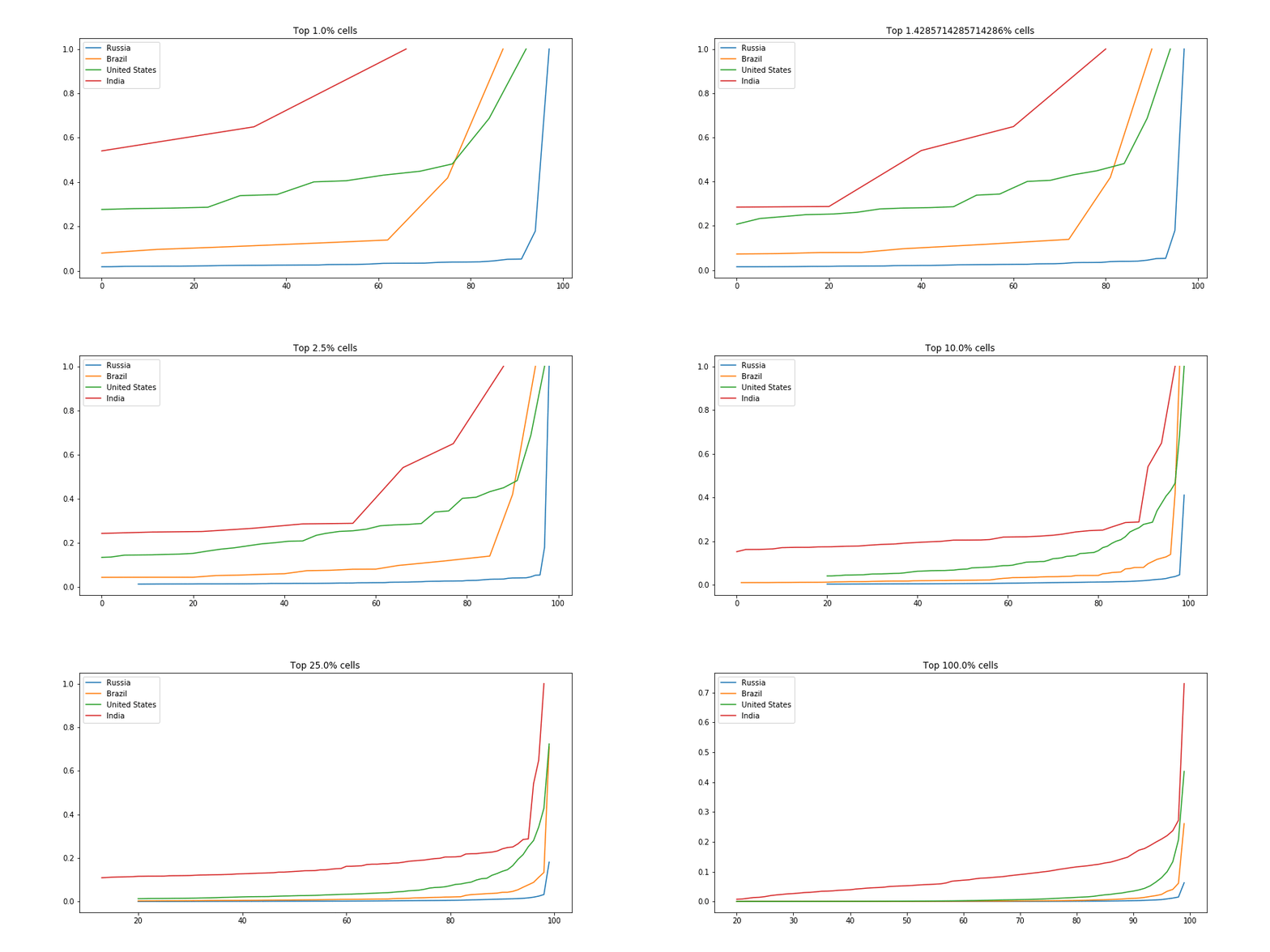
There are many ways we could compare countries. A bar plot of average economic activity per grid cell, perhaps, or comparison between the most productive single grid cell in each country. I was interested to see which countries had the most spread. The GIF below shows this dramatically: the top few cells in Russia are responsible for a huge chunk of the economic activity, while India has much more of a spread:

Scaled fraction of the total economic activity in four countries.

For the code, see the GitHub repository associated with this post.

Conclusions

I hope you’ve enjoyed this quick, informal look at a fun dataset. I’m planning on doing more of these ‘Data Glimpse’ posts, since they take less time than a full write-up. The trade-off is that quality is lower, since I’m not going to invest time into perfectly labelled axes, long explanations or extra figures. Let me know what you think about this plan!

References:
[1] – Nordhaus, W., Azam, Q., Corderi, D., Hood, K., Victor, N.M., Mohammed, M., Miltner, A. and Weiss, J., 2006. The G-Econ database on gridded output: Methods and data. Yale University, New Haven6.References:
[2] – https://gecon.yale.edu/data-and-documentation-g-econ-project (accessed June 2019)

Tutorial: Improving Crop Type Predictions

Following on from the last tutorial, this post will look at some ways we can improve our crop identification method. At the end of the last post, we were using a CART classifier to classify crops based on a greenest-pixel composite made from landsat 8 imagery. It didn’t do too well compared to other submissions, and the classifier was getting around 65% accuracy on the training data. Let’s start fixing some of the more obvious errors.

Improving the input data for the classifier

Using a greenest-pixel composite was an easy first step. However, the competition is focused on a single year (2017), while the composite image likely drew data from previous years. And, with a single composite image, any growth cycles or seasonal variation between the different crops is lost. This leads to our first major improvement: using images from different times of year and combining them into one input image that preserves the seasonal changes.

Best quality landsat imagery from Jan-March 2017, one of the new model inputs

The new Earth Engine code filters the available Landsat imagery by date, splitting it into 4-month sections. The earliest high-quality imagery from each time period is selected (based on the code in this guide). Once this step is complete, the images are combined int a single new image that maintains the bands from each. The result is an image with 28 bands, which will be sampled and used by the model.

Merging the images into one

Using the resultant merged image in place of the greenest-pixel composite, a CART classifier now achieves an accuracy of 76% on the training data, and scores 16.56 on the test data – an improvement over our previous score for this model. A randomForest classifier with 100 trees does even better, bringing the score down to 13.56, our new best.

Training models and making predictions locally for faster iteration

So far, we’ve been using GEE’s classifiers and making predictions over the whole area, then sampling the predictions to get a single class as our final prediction. Instead, let’s sample the landsat data for each polygon in the train and test sets, download that data and use it to train models locally. This will be make experimenting with different models much faster.

The full code is here, and by taking the median value for each band of the merged image for each region of the training and test datasets, we get a pair of CSV files that we can easily load into Pandas for further analysis.

Loading the data

Before experimenting with different models, optimizing parameters and so on, the first thing I tried was switching from predicting a single output class to predicting the probabilities that a given set of inputs belong to each of the different classes. Using the RandomForestClassifier from Scikit-learn, this is as simple as calling predict_proba(X) instead of predict(X). This gives a submission file much closer to the example provided by Zindi:

Predicting probability for each class

So how does this new, improved submission score? 1.48! We’ve jumped from near-last to top 50% (15’th as of today) while still not using the provided satellite data!

Model Tuning

Just for fun, let’s see how good we can get. Instead of submitting to Zindi to get a score (limited to 5 a day), we need a way to compare models locally, ideally with the same metric the contest uses. Fortunately, they’re open about the scoring method – it’s based on log-loss. By splitting the training data, using part to train a model and the rest to test it, we can get a rough idea of what out model would score:

Scoring a model with log_loss

The score depends on the test/train split. For better accuracy, we can average the scores with several different test/train splits. With a scoring method in place, we can start optimizing our models. As an example, we can pick the number of trees to use with the random forest model by plotting how the scores change with more estimators. In this case, anything above 200 looks to provide minimal extra advantage.

With Random Forest bottoming out at ~1.4 after some tweaking, I turned to XGBoost. A nice summary of tuning XGBoost can be found here. Starting with some suggested values and tweaking the max_depth and learning_rate parameters led me to a model that scored 1.15 in my tests – enough of an improvement that I made a submission using it’s predictions on Zindi. Score: 1.51. Pretty much the same as the Random Forest model.

Combining good models – Ensemble Modelling

Given several good models, can we get a better prediction by combining their outputs? This is a complex subject, but by simply taking the mean of the predictions made by my two best models, I achieved a score of 1.41 – 14’th place.

Conclusions

This GitHub repository contains the training and test datasets I generated with sampled Landsat data, as well as explanatory notebooks containing all the code described in this post. Feel free to follow along, make improvements and try it yourself. The key to further score improvements will be feature engineering – trying imagery from different time periods, adding features for plot area, distance to river, variation within the field etc. Lowering the scale variable in GEE to 30 will give slightly better data, as will sampling from the central areas of the fields. If I try any of these, I’ll update this post.

For now, however, I am content. We’ve seen that it is possible to perform the specified task (crop identification) using nothing but some free Landsat data in GEE and some open source libraries to do the ML heavy lifting. While the fancy imagery provided is no doubt useful (see the top scores as evidence of this), this exercise shows that it is not essential to this kind of analysis. I hope that it inspires some of you to see what else is possible.

Tutorial: Predicting Crop Types with GEE

Attempting Zindi’s Farm Pin Crop Detection Challenge Without Downloading any Imagery

Zindi is currently hosting a competition to classify fields by crop type using Sentinel-2 satellite imagery. They provide labeled fields with the crop type, and a separate set of fields as the ‘test’ set. The goal is to use the provided imagery to predict the crop type as accurately as possible. It’s a great contest, BUT: The imagery files are huge (although they offer Azure credits to help mitigate this by using cloud computing), and extending such an analysis to other areas is not easy. The goal of this post is to show how we can use the labeled fields to train our own classifier in Google Earth Engine (GEE), using Landsat imagery for the classification (EDIT: Sentinel 2 imagery is also available in GEE, making this choice somewhat arbitrary). This results in a model that can be applied over any region, and is a process that could be replicated by anyone with some known crop fields and an internet connection.

I won’t include all the code here. Instead, view it and try it for yourself here.

The Training Data

The important data is contained in a shapefile (a mapping-related file format for ‘vector’ layers that can contain points, lines or polygons). It contains multiple features (polygons), each representing a field with a certain kind of crop. The crop type is encoded as a number from 1 to 10. More info here.

Some features in the ‘train’ shapefile.

We can upload this data as an asset in GEE by using the ‘New Table Upload’ option and selecting all the files except train.qpj (which is unnecessary). I named the asset ‘farm_zindi_train’, and repeated the steps for the test dataset.

There is one last hurdle we must overcome when using this data to train classifiers in GEE. Each feature in the training shapefile contains a property, ‘Crop_Id_Ne’, that tells us the crop type. Unfortunately, this is represented as a string. To convert it to the required type, we create a function that is mapped over the feature collection and use ee.Number.parse() to convert the string into a number for the model to use.

Getting the required properties in the correct type by mapping a function over the collection

Landsat Imagery

Instead of the Sentinel-2 imagery the competition is using, we’ll see if we can achieve the same results with freely available Landsat 8 imagery. I used code from this tutorial to load the landsat data and create a ‘greenest pixel composite’ based on a computed value called NDVI (normalized difference vegetation index). This is not an ideal approach – we could instead have chosen a time of year when the differences between crops are most obvious, or used multiple images from different times in the growing season. These improvements will be considered in a future tutorial.

Training A Classifier

The ‘Supervised Classification’ guide by Google is good place to start when attempting this kind of classification task. The only changes I made to the provided code was to change the references to match my own training data, tweak the scale to reduce memory use and specify the property we’re trying to predict (in our case, ‘CID’ for crop ID). Looking at the output, it seems to roughly match the farm outlines – a good sign.

Classifier output with farm boundaries shown.

Comparing Classification Accuracy

Ideally, we’d split the data into training and test sets, compare different classifiers and pick the best. We might even keep a third set of data, the ‘validation’ set, to get a better idea of how our chosen classifier will perform on unseen data. As with the different options for input layers, I’ll leave this for a second tutorial. For now, we will be lazy and evaluate the accuracy on the training data: print(‘Accuuracy’, trained.confusionMatrix().accuracy());

The accuracy of a CART classifier is listed as 65%. Not bad, given that there are 10 classes, but not great either. Switching to a random forest model gives a much higher accuracy score, but may be subject to overfitting.

Exporting Predictions

To get the predicted crop type in each region of the test file, we look at the most common crop type predicted by the classifier in each region and export the predictions to a CSV file:

Exporting predictions

This results in a file containing columns for Field_Id and predicted crop type. Normally, this is what we’d like. However, the Zindi contest specifies the submission with predicted probabilities for each different crop:

The submission format

To get the data in this format, I used Python and pandas, with the pandas get_dummies function:

Formatting the data correctly

This is not ideal – we see a 1 for our predicted class, with 0s for the rest. It would be better to predict the probabilities and hedge our bets, but let’s see see how this does. predictions.to_csv('pred_test_cart.csv', index=False) gives a file we can upload on Zindi… And the final score? ~17.4 (or ~15 with the random forest model), putting this submission in 30th place out of 31 entries as of today.

Future Improvements

There are many ways we could improve this score. A different classifier might perform better. Selecting the greenest pixels was probably not the best approach. Instead of using ee.Reducer.mode(), we could count how many pixels are predicted for each crop type and use those counts to assign probabilities for our submission. Etc Etc. Some of these improvements will be covered in a future tutorial, hopefully coming soon.

Conclusions

Despite our lackluster score, this exercise has hopefully shown the possibilities of this approach. Using only freely available imagery, which we never had to download thanks to Google Earth Engine, we were able to make predictions about which crops were being grown in different fields. If you’ve followed along, I hope you’ve seen what is possible with GEE – simply by copying snippets of code and gluing them all together. Once the accuracy is improved, this technique could be applied in many different situations.

New Database: Forest Change in Different Regions

Forest loss is a major problem facing many parts of the world right now. Trees are being cleared to make way for agriculture, or simply cut down for fuel and timber. Tracking this loss is an important goal, and much work has been done in this area.

One of the best datasets on the topic is the Hansen Global Forest Change [1] dataset, available for free on the Google Earth Engine platform. This dataset tracks forest loss since the year 2000, and has become a key tool in fighting deforestation.

Forest cover (green), loss (red) and gain(blue) – from the Hansen dataset[1]

There is only one issue that I have with this data: it is HUGE! Approximately 1.22 TB. For anyone unable to write the code needed to analyse the data in GEE, this size means that downloading the data or importing it into traditional mapping applications is not feasible. And often we don’t need all of this data, instead simply requiring a few key stats on an area of interest. Consider wanting a graph of forest loss in your country over the last 20 years: it’s a nice visual to help you make a point, but it’s not worth learning to code or downloading >1TB of data for.

This leads to today’s project. I wrote some code that takes in a file specifying the boundaries of different regions. It then aggregates the data from the Hansen dataset over each of the specified regions. For example, I used the Large Scale International Boundary Polygons (LSIB) [2] map of the world’s countries as an input, ending up with total forest loss, loss per year and forest cover for every country in a convenient 98 KB csv file. It also outputs a version of the input file as a shapefile, with added attributes containing the summarized forest change data. The former is all you need to plot change over time, see which regions have experienced the most loss or identify which country has lost the most forest in the last ten years. The latter is nice for creating colorful maps displaying this information – it’s only ~60MB, and loads quickly into the mapping software on my laptop.

Forest loss in different regions

The Earth Engine code is available here.The rest of this post will explain how to use the generated datasets (available here) for simple analyses.

Viewing the shapefile in QGIS

QGIS [3] is an open source GIS application. The vector file (available here) can be opened in QGIS with ‘Open Data Source Manager’ -> ‘Vector Layer’ -> browse to the .shp file and click ‘Add’. By default, it looks uniform. To see the information better, right click on the layer, open properties and change the style from ‘single symbol’ to ‘graduated’:

Setting the style of the vector layer in QGIS

With these settings applied, the differences between countries become apparent. Play with the colours and classes until it looks good. To query the exact value of the loss in a given country, use the ‘Identify Features’ tool (Ctrl-Shift-I) and click to see all the attributes. To create a beautiful PDF map, consult a tutorial such as this one for all the fancy output options.

Forest loss displayed in QGIS

Analyzing the data with Python + Pandas

The smaller csv file (available here) is good for cases where the country outlines are not required. It is possible to open the file in Excel or Google Sheets, but let’s stretch our Python muscles and make some simple plots. A notebook with the full code for this example is available in the GitHub repository.

The first step is loading the data: we import the necessary libraries then load the data into a pandas DataFrame with “df = pd.read_csv(‘countries_w_hansen.csv’)”. For our first plot, let’s look at the total loss (from the ‘loss’ column) for different world regions:

Plotting forest loss for different regions

The Hansen data encodes the years different areas experienced loss events. This data is captured in the ‘Group X’ columns. We can sum these columns to see the total loss each year, and note the worrying trend:

Forest loss per year

Of course, we have the country data, and can focus on a single country or region using df.loc:

Forest loss over time in Africa. The drop looks encouraging… until you consider the latest date this data was updated (2018 was still ongoing)

Where next?

This data is fairly depressing, but my hope is that an exploration of it doesn’t end with resignation. There are things we can do, ways we can help reduce this loss. Take a look at the data. Share the stats on your country, and push for change. Post those graphs on Facebook, call your representatives and demand action, find an organization working to fight this… If we’re serious about saving our planet, we’re all going to have to be involved.

References

[1] – Hansen, M. C., P. V. Potapov, R. Moore, M. Hancher, S. A. Turubanova, A. Tyukavina, D. Thau, S. V. Stehman, S. J. Goetz, T. R. Loveland, A. Kommareddy, A. Egorov, L. Chini, C. O. Justice, and J. R. G. Townshend. 2013. “High-Resolution Global Maps of 21st-Century Forest Cover Change.” Science 342 (15 November): 850–53. Data available on-line at: http://earthenginepartners.appspot.com/science-2013-global-forest.

[2] – LSIB: Large Scale International Boundary Polygons, Simplified
The United States Office of the Geographer provides
the Large Scale International Boundary (LSIB) dataset. The detailed
version (2013) is derived from two other datasets: a LSIB line
vector file and the World Vector Shorelines (WVS) from the National
Geospatial-Intelligence Agency (NGA).

[3] – QGIS. A Free and Open Source Geographic Information System. qgis.org

[4] – GitHub repository containing data and code: https://github.com/johnowhitaker/hansen_data_countries